
Thanks for attending my session at Unity Connect Online!

thought leadership collides with learned experience to yield practical advice
Microsoft has released guidance on how tenant and site administrators can enable and disable the new SharePoint document library experience for users. See this article:
Using this method, I was successfully able to alter the user’s experience, but here is a caveat… When you alter the setting in the SharePoint Admin Center:

the effect is not immediately apparent. There is a delay between when you make the change (to either choice) before a user will notice. SharePoint Online must be going through programmatically and changing settings at a library level. For my test, I only have one site with one document library in it in the entire tenant, and it took between 30 and 60 minutes to update.
Also I noticed that Microsoft is calling this setting SharePoint Lists and Libraries Experience, even though the settings provided are only exposed for libraries, not lists. Is more change to come to our list views?

If you noticed this graphic in one of your Office 365 site libraries recently, your tenant has had the new SharePoint document library experience enabled. This is the way document libraries are to appear going forward in SharePoint Online as well as in the upcoming release of SharePoint 2016.
As I understand it, if a user clicks Check it out on this graphic, they will experience the new way of displaying document libraries while another user will not until they click as well.
The user interface is much like that of OneDrive/OneDrive for Business. Microsoft’s description of the new capability is as follows:
You may notice a change in the look and navigation of your document libraries. This new experience is faster, has additional phone and tablet features, and simpler navigation.
Note that major changes with this capability include:
Here are some key notes about this new capability:

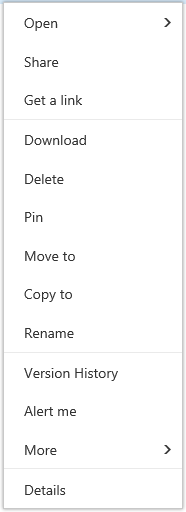
If you open up the ECB (edit control block) for a document, you will no longer see a preview of the document and the field that contains the link; it appears with a longer list of options including Pin which will stick a small preview of the document at the top of the library’s view.
If you click the ellipsis to the right of the column headers, you can now directly change the columns that are displayed in that view and their order.

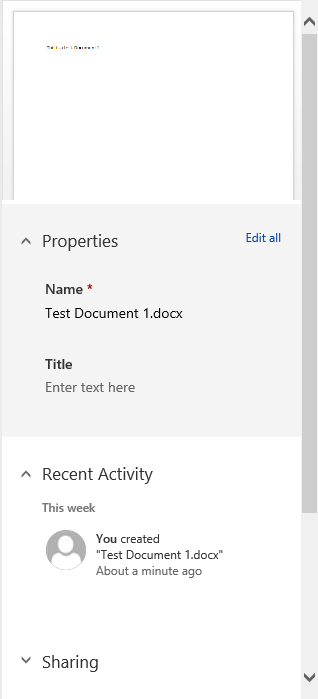
Clicking on the information icon will expand the properties pane from the right side of the browser to either show you recent activity within the library, or if a document is currently selected, properties and a preview of that document.

Or, if a document is currently selected, properties and a preview of that document will be shown.
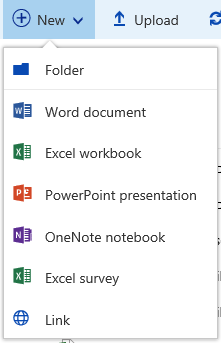
The New button will give you a list of Office document types or Folder to choose from and, interestingly, the Link option. If you are familiar with the Link to a Document content type, this allows you to store a URL to something within a library instead of an actual physical file. If you click on the Link option, SharePoint Online will ask you to input the URL and automatically enable the Link to a Document content type within the library–something that one would have had to do manually before. If you already have the management of content types enabled within the library, the list of Office document types will be replaced by your library’s enabled content types. Folder and Link will continue to be displayed even if you turn off folders in Advanced Settings within the Library Settings. It does not immediately appear to me that there is a way to disable the Link option, and it is obvious that the new interface does not respect the existing folders setting within the library.
Views for the library are presented in new drop-down menu along with the List and View in File Explorer options. Interestingly here, one would think that the latter would immediately open up a Windows Explorer window to browse the library. This is not the behavior–instead, a new browser tab is opened with the classic SharePoint list experience and THEN the Windows Explorer window appears.

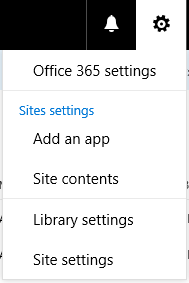
To get to the library’s settings page, use the settings icon in the Office 365 header.
At any point, use the lower left link in the site contents navigation pane to return to the classic SharePoint list experience.
Clicking on a document set in a library will also inevitably bring you back to the classic experience–the document set welcome page has not been integrated yet.
Note: Not all Office 365 tenants have had this capability enabled yet. Yours may not have had this particular update enabled yet.
Thanks for attending my session at SharePoint Saturday New Hampshire, sponsored in part by BlueMetal!
Thanks for attending my session at SharePoint Saturday Connecticut, sponsored in part by BlueMetal!
Thanks for attending my session at SharePoint Saturday Connecticut, sponsored in part by BlueMetal!
Our friends at Microsoft have helped us information architects out with some official Visio shapes for SharePoint. IT Pros and Farm Admins certainly will benefit as well.
Creating visual representations of your Microsoft Office and Office 365 architectures, including Microsoft Exchange, SharePoint, and Skype for Business is a helpful way to communicate your deployment. These Visio stencils provide more than 300 icons — many depicting servers, server roles, services and applications — that you can use in architecture diagrams, charts, and posters. These icons are primarily centered around deployments of Microsoft Exchange Server 2013, Microsoft Skype for Business, and Microsoft SharePoint Server 2013 as well as hybrid Office 365 deployments of aforementioned technologies.
The zip file now includes both stencil sets from 2012 and 2014.
Adoption Agile AI Analytics Bugs Change Management Cloud Delivery Excellence Digital Strategy Digital Workplace Enterprise Content Management Humans Hybrid InfoPath Information Architecture Information Governance Information Management Interviews Knowledge Management Meetings Navigation Office 365 Podcasts PowerShell Presentations Project Management Resources Sample Data Sets Search SharePoint SPS Events Tools User Experience Workflow

